start here
Manager Setup Guide
Everything you need to set up your nursery and get your team ready on Wabbit.
your nursery, ready in simple steps ↗

Create Classrooms
Start by setting up the classrooms in your nursery.
- Go to the School page
- Find the Classrooms section
- Click 'Add Classroom' and give it a name (e.g. 'Butterflies')
Add Instructors
Invite your teachers to join your nursery on Wabbit.
- Go to the School page
- Find the Instructors section
- Click 'Add Instructor' and enter their email address
Add Students
Add each child enrolled in your nursery.
- Open a classroom and navigate to the classroom page
- Find the Students section
- Tap 'Add Student' and fill in the details
Add Parent Emails
Connect parents to their children so they get updates.
- Open the child's profile
- Find the Guardian section and click 'Add'
- Fill in the details — make sure the email matches the guardian's email
Mark Attendance
Start tracking who's in each day.
- Option 1: Open a classroom and mark attendance under the Students section
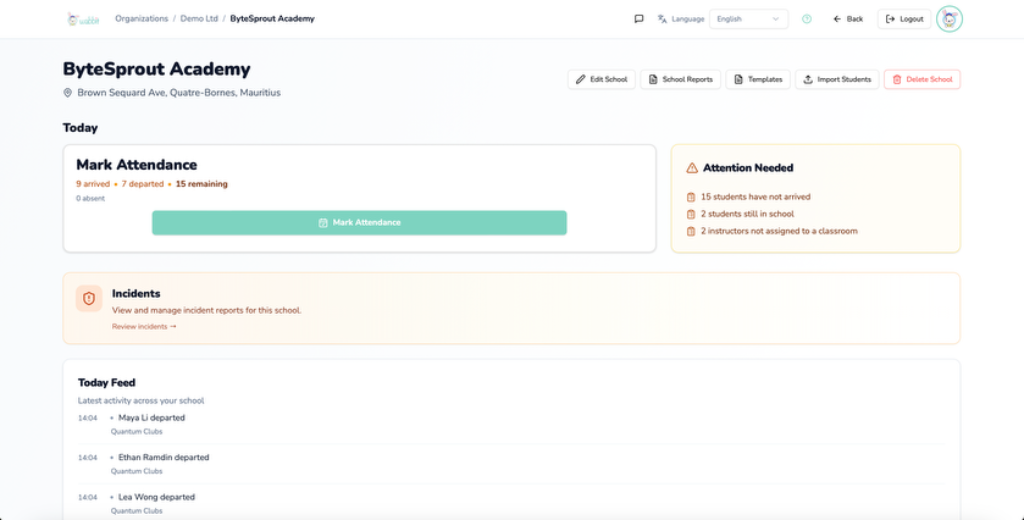
- Option 2: Use the 'Mark Attendance' button on the School page
Upload Your First Memory
Share a special moment with parents.
- Option 1: Go to the Memories section on the dashboard, tap 'View All', then tap 'Upload'
- Option 2: Use the camera button in the teacher app to upload directly
Add School Terms
Set up your school terms so Wabbit can organise the academic calendar.
- Go to the School page and scroll to the School Terms section
- Tap 'View All', then tap 'Add Term'
- Fill in the term details and save
Create a Meal Plan
Set up meals for your nursery so parents can see what their children are eating.
- Go to the School page and scroll to the Meal section at the bottom
- Tap 'View All', then tap 'Add Meal Plan'
- Fill in the meal details and save
take it step by step
How It Looks
Preview of the manager dashboard
take it step by step
Manager Checklist
Track your setup progress
Setup Checklist
1/6take it step by step
Resources
Guides and downloads for managers